
If you're a member of multiple teams, you can easily switch between them to access different bookings, schedules, and team-specific data.
Switching Teams
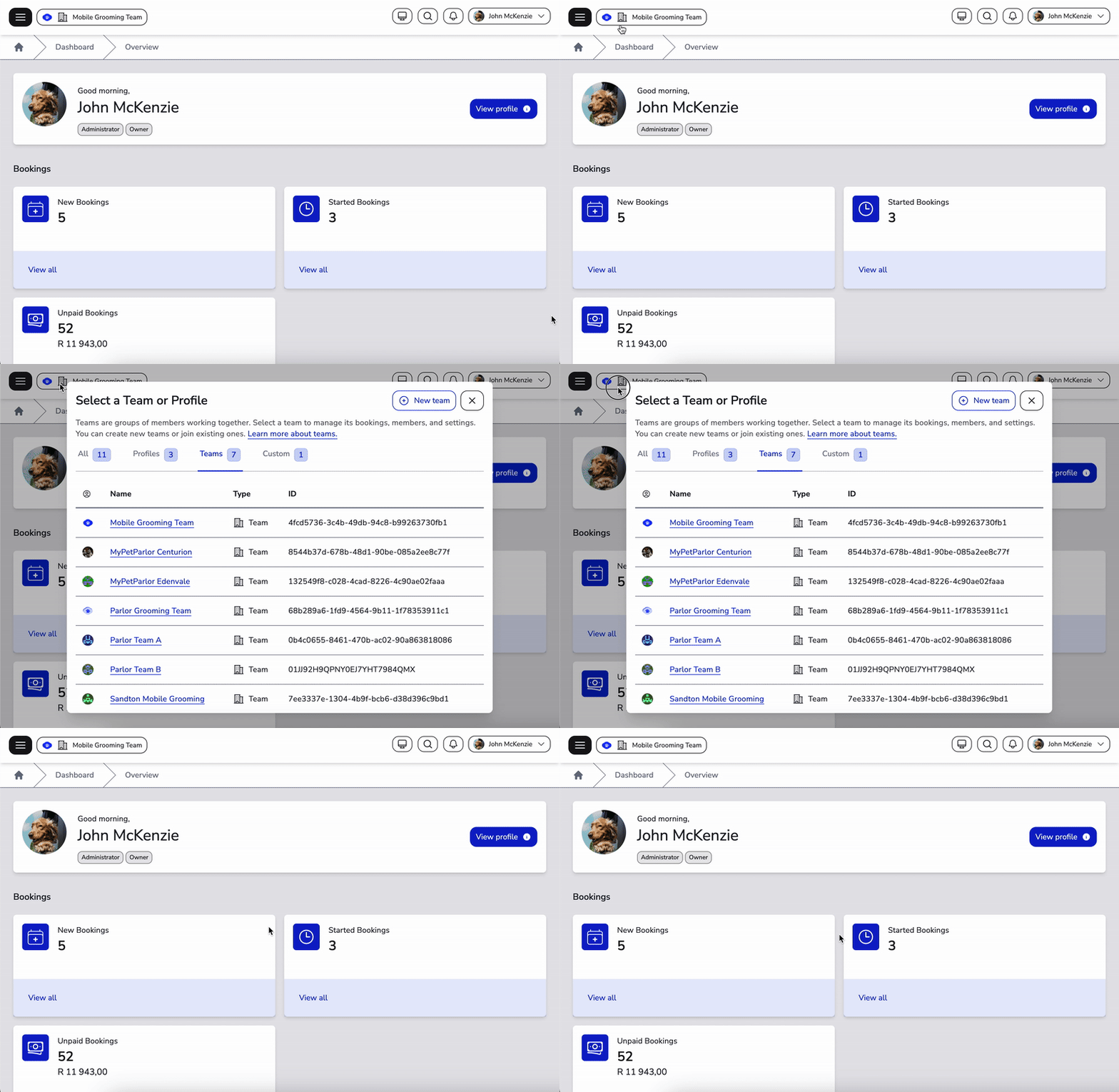
To switch to a different team:
- Look at the top-left corner of the screen
- Click on the team selector button showing your current team name
- A dialog will appear with all the teams you have access to
- Click on the team you want to switch to
- The view will refresh with the selected team's data
What Changes When You Switch Teams
When you switch to a different team, the following data changes:
- Bookings: You'll see only the selected team's bookings
- Schedules: Team-specific schedules and availability apply
- Customers: Customer data displayed for that team
- Staff: Team members assigned to the selected team
- Settings: Team-specific configurations and preferences
Tips for Working with Multiple Teams
- Use clear, descriptive team names to quickly identify each team
- Check you're in the correct team context before creating bookings
- The current team name is always visible in the top-left of the screen