
Teams are the best way to keep bookings about various parlor branches or mobile grooming teams organised in MyPetParlor App. With the possibility of adding as many team licences as you need, there is no limit to how many teams you can create in MyPetParlor App - go ahead, build your empire!
Important: You must have the "Owner" role assigned to you in order to create a team.
Create a Team
To create a team, follow the steps below:
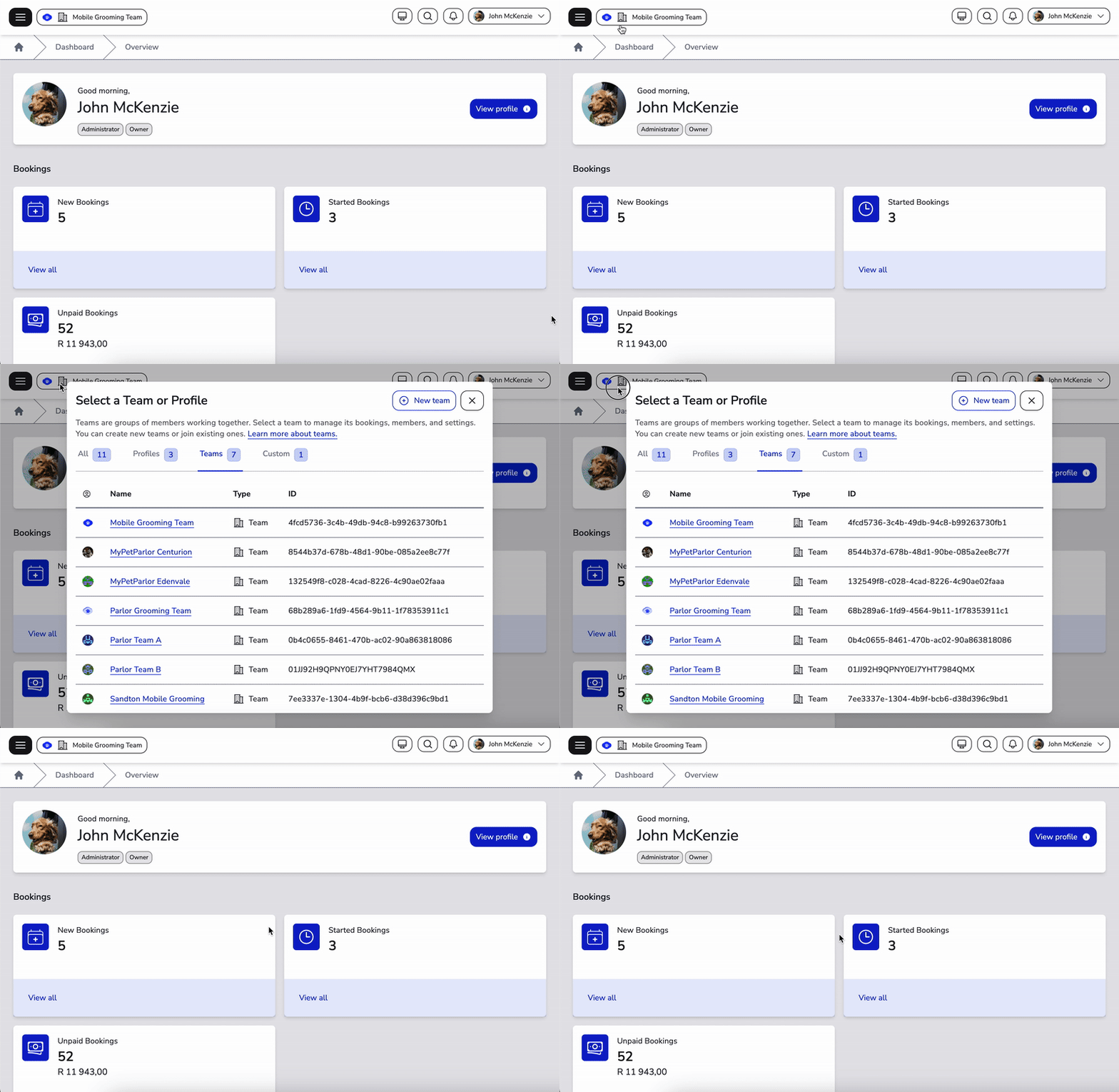
Step 1: Open the Team Selector Dialog
- Look at the top left of your navbar
- Find the team selector button
- Click the New team button in the top right corner of the dialog
Step 2: Choose a Team Type
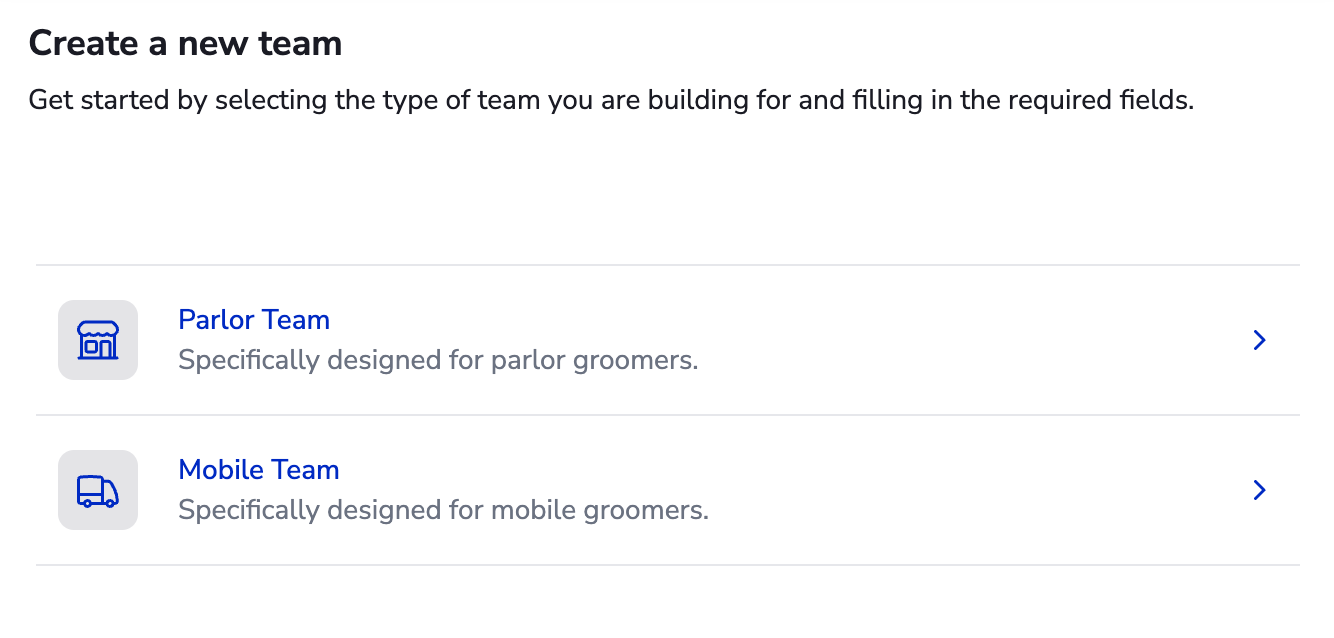
- A team type selection dialog will appear
- Choose a team type from the available options:
- Mobile: For mobile grooming teams
- Parlor: For physical parlor/grooming locations
- Click to select your preferred team type
For more information about team types, see What is a Team.
Step 3: Enter Team Details
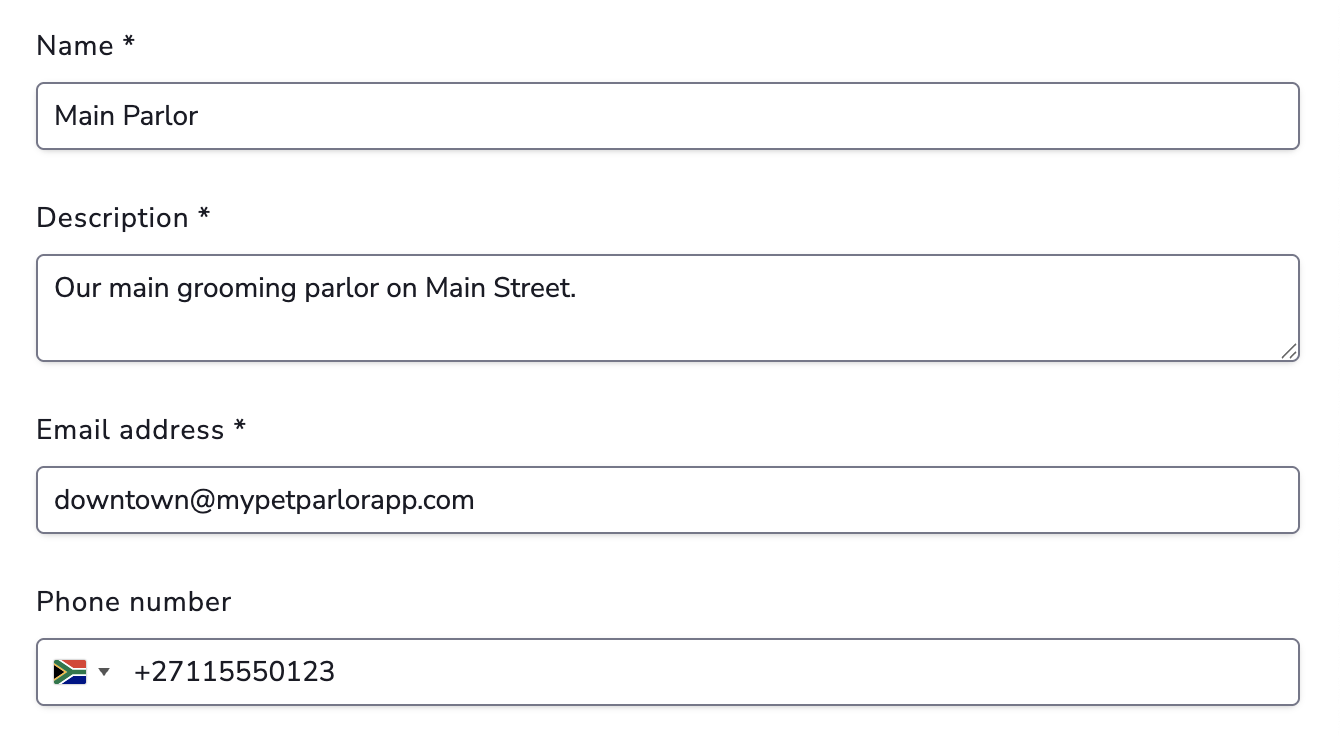
Fill in the team information form:
- Team Name (Required): A clear, descriptive name for your team
- Description (Required): A brief description to help identify the team
- Email Address (Required): The team's contact email for communication
- Phone Number (Optional): A contact phone number for the team
Step 4: Create the Team
- Review the team details
- Click the Create button
- Your team will be created and added to your team selector
After Creating a Team
Once your team is created:
- You can switch to your team in your team selector
- Add and assign members to your team
- Edit your team's settings
- Start creating bookings for your team