
MyPetParlor App organises bookings into dedicated spaces called teams. Assign members to teams to bring the right people and information in your organisation together in one place.
Organisation vs. Team Members
In MyPetParlor App, a member can be assigned to 0 or more teams, but all members belong to the organisation.
Organisation:
- Contains all members of your organisation
- Accessible only to owners
- Used to view and manage all members
Team Members:
- Specific members assigned to a particular team
- Each team can have its own set of members
- Members can be part of multiple teams
Before You Start
Required Permissions:
- You must have the "Owner" role to assign members to teams
- You need access to the Organization Profile
- Members must already exist in your organisation
Assign a Member to a Team
You can assign an unlimited number of members to a team. To view all the organisation members from the Organisation and assign them to a team, you will need the "Owner" role.
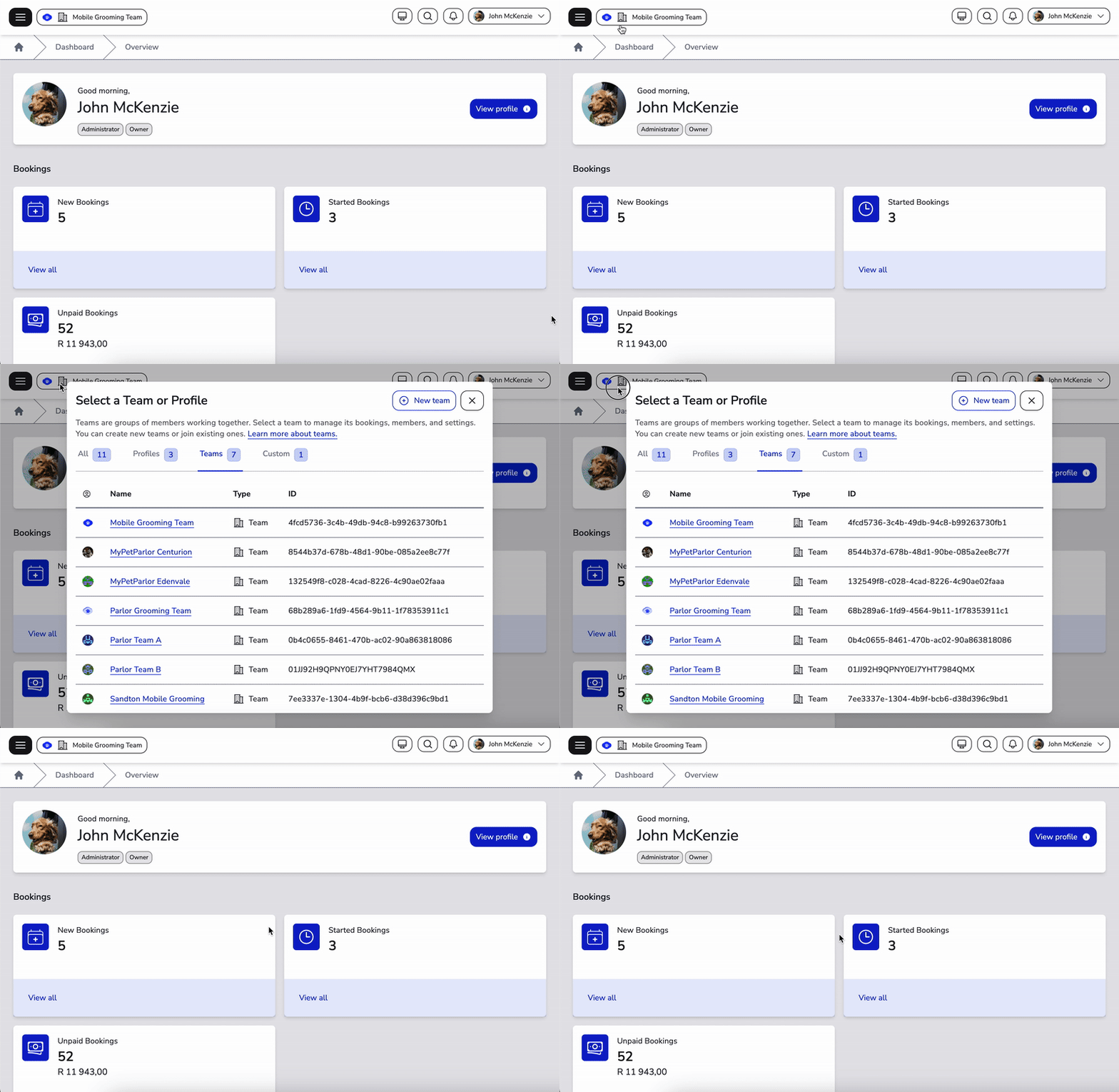
Step 1: Switch to Organisation
- Click the team selector at the top left of your navbar
- If the team selector dialog defaults to the "Teams" tab, click the "Profiles" tab
- Click the Organisation profile from the list of profiles
Step 2: Navigate to Team Members
- Go to Settings in the left menu
- Select Members to view all organisation members
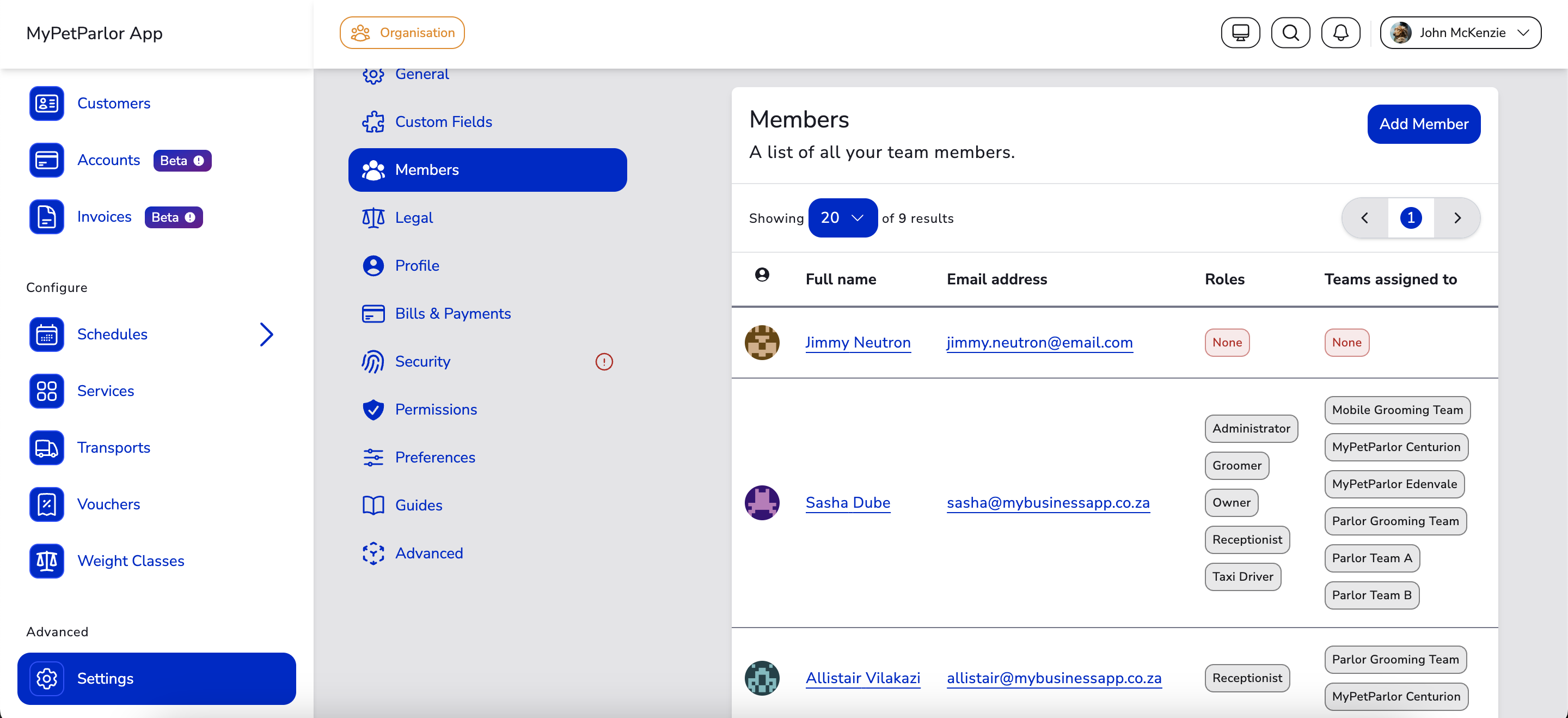
Step 3: Open Member Details
- Find the member you want to assign to a team
- Click on the member's full name to open their detail page
Step 4: Assign Team(s)
- On the member's detail page, click the Assign team button
- A dialog will appear showing available teams
- Select the team, or teams, to assign the member to
- You can assign members to multiple teams
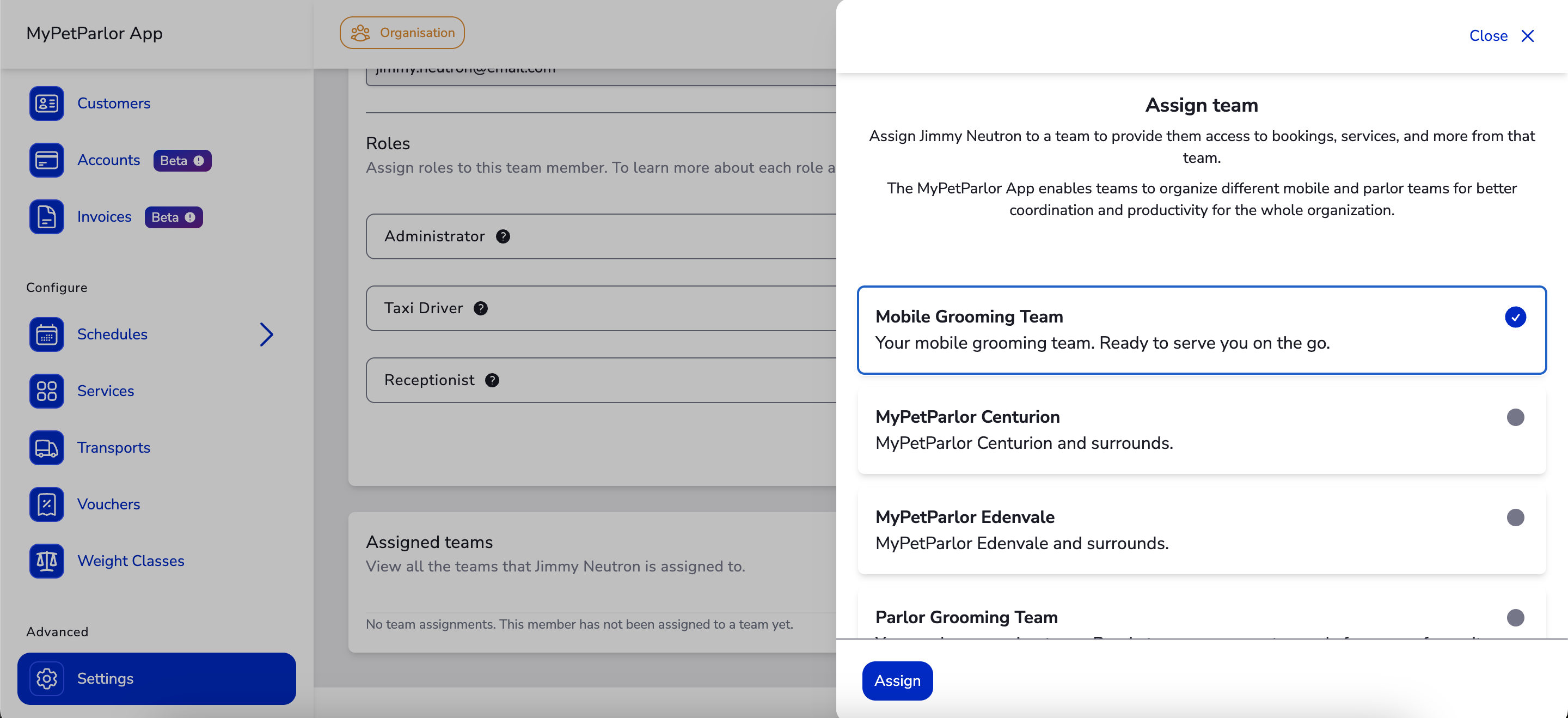
Step 5: Save Assignment
- When you're done selecting teams, click Assign
- The member is now assigned to the selected team(s)
- The member will be able to access those team(s)
After Assignment
Once you've assigned a member to a team:
- Member Access: The member can now access the team(s) they've been assigned to
- Team Visibility: The team will appear in their team selector dropdown
- Bookings: They can view and manage bookings for that team
- Team Switching: They can switch between assigned teams anytime
How Many Teams Can a Member Join?
You can assign an unlimited number of members to a team, and members can be assigned to multiple teams:
- ✓ One member can be in multiple teams
- ✓ Multiple members can be in the same team
- ✓ No limit to team assignments per member
- ✓ No limit to members per team
Removing Members from Teams
To remove a member from a team:
- Go to the member's detail page
- In the list of assigned teams for the member, click the 3 vertical dots icon button of the team you want the member removed from
- Click Remove