
If you have access to multiple profiles, you can easily switch between them to view and manage different configurations and settings.
Note
You need the "Owner" role in order to access the Organisation Profile.
Switching Profiles
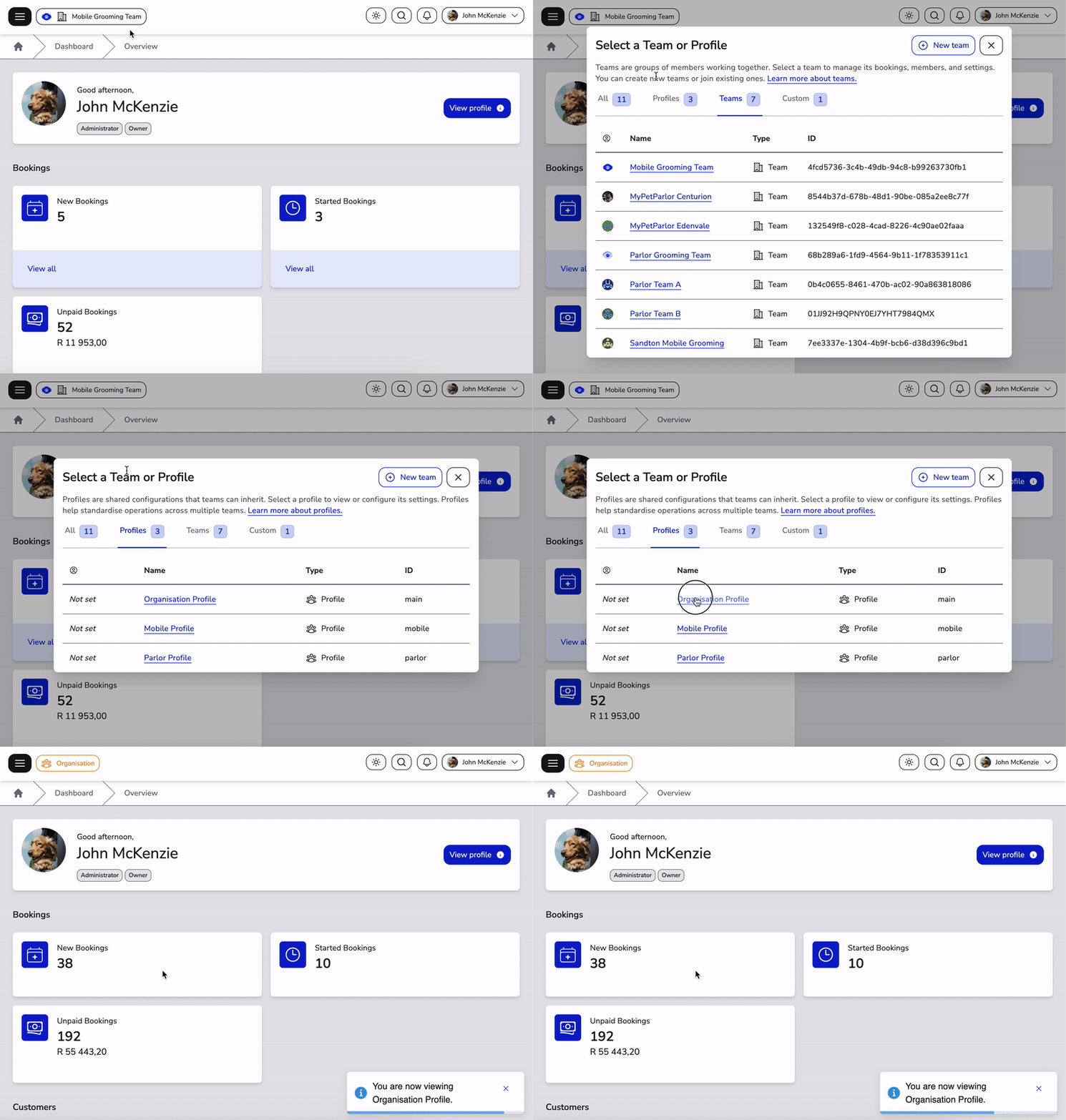
To switch to a different profile:
- Look at the top-left corner of the screen
- Click on the team selector button showing your current team or profile name
- A dialog will appear with all the teams and profiles you have access to
- Click on the profile you want to switch to
- The view will refresh with the selected profile's data
What Changes When You Switch Profiles
When you switch to a different profile, the following data changes:
- Services: You'll see only the selected profile's service offerings and pricing
- Schedules: Profile-specific day schedules and date schedules apply
- Transports: Transport configurations for that profile
- Vouchers: Discount vouchers assigned to the selected profile
- Weight Classes: Profile-specific weight class definitions
- Settings: Profile-level configurations and preferences
Tips for Working with Multiple Profiles
- Check you're in the correct profile context before making configuration changes
- The current profile name is always visible in the top-left of the screen
- Remember that changes to a profile will affect all teams that inherit from it