
After creating your account, you'll need to understand how to log in and navigate between different team contexts.
Logging In
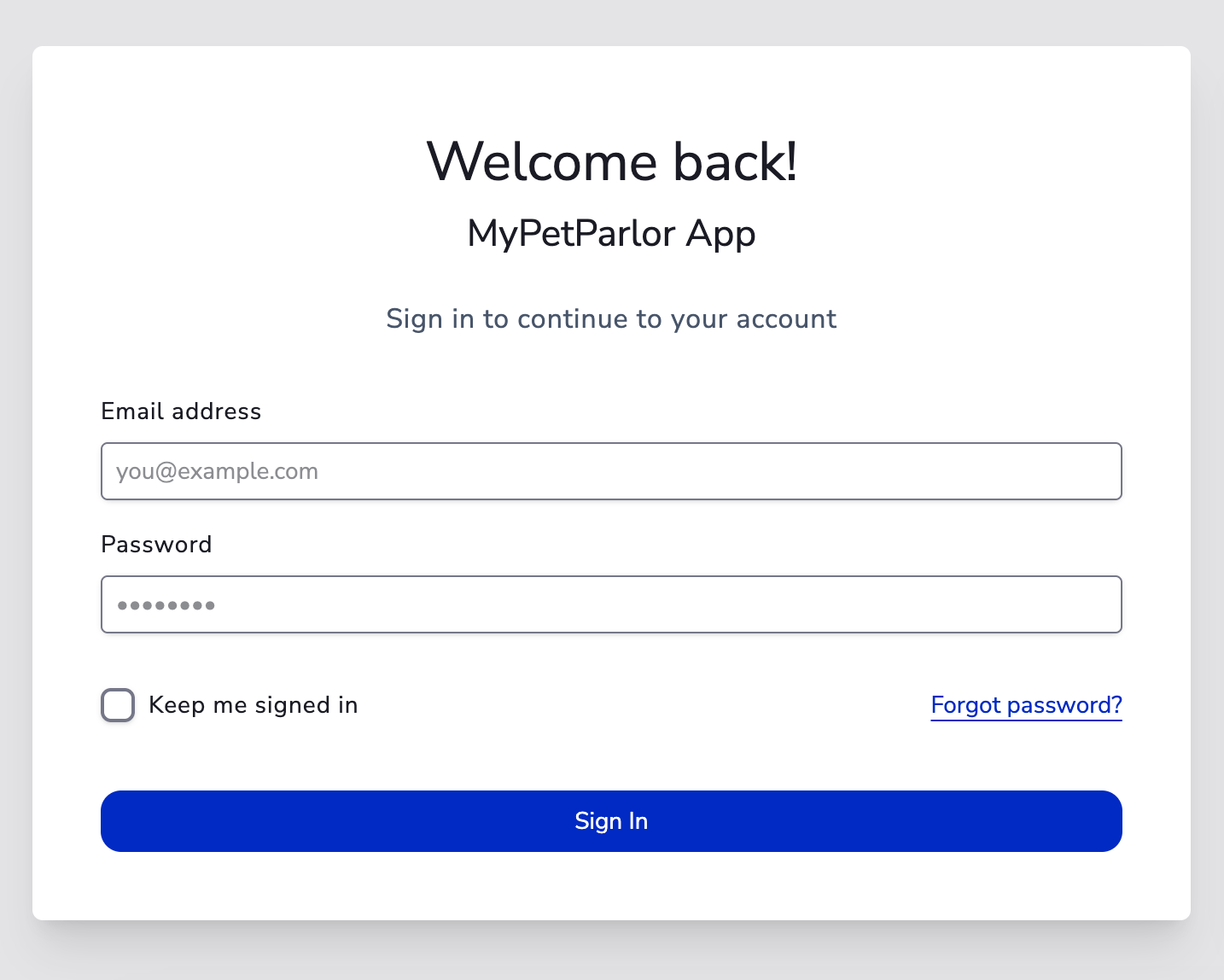
Step 1: Navigate to the Portal
Go to portal.mypetparlorapp.com to log in.
Step 2: Enter Credentials
- Enter your registered email address
- Enter your password
- Check "Keep me logged in" to stay signed in on this device
Understanding Team Context
MyPetParlor App uses a team-based structure. When you are logging in for the first time, you'll need to select which team you want to work with. To change the team again see Switching Teams.
What is a Team Context?
A team context determines:
- Which bookings you see
- Which schedules apply
- Which customers are displayed
- What permissions you have
Switching Teams
- Look at the top-left corner of the screen
- Click on the current team name
- Select a different team from the dropdown
- The view will refresh with the new team's data
Common Team Examples
- Main Location: Your primary grooming parlor
- Mobile Team A: A mobile grooming van or unit
- Branch Office: A second physical location
Accessing Settings
Most configuration takes place in the Settings area:
- Look at the bottom-left of the sidebar
- Click on Settings → (gear icon)
- Navigate through the settings categories
Settings Categories
- Organization Profile: Business details and preferences
- Teams: Manage team members and roles
- Schedules: Configure working hours
- Services: Set up grooming services and pricing
- Integrations: Connect external apps
Troubleshooting Login Issues
Forgot Password?
- Click "Forgot Password" on the login page
- Enter your email address
- Check your inbox for reset instructions
- Create a new password
Account Locked?
After 5 failed login attempts, your account may be temporarily locked:
- Wait 15 minutes and try again
- Contact support if the issue persists
Browser Issues?
If login isn't working:
- Clear your browser cache and cookies
- Try a different browser (Chrome, Firefox, Safari)
- Disable browser extensions temporarily
- Check your internet connection
Security Best Practices
- Use a strong password: Minimum 12 characters with mixed case, numbers, and symbols
- Enable Two-Factor Authentication: Extra layer of security
- Don't share credentials: Each team member should have their own login
- Log out on shared devices: Always log out when using public computers